![GAPTEQ Logo links weiss.png]](https://knowledgebase.gapteq.com/hs-fs/hubfs/GAPTEQ%20Logo%20links%20weiss.png?width=223&height=54&name=GAPTEQ%20Logo%20links%20weiss.png)
In this article, you will read about the following topics:
Set up key pair authentication
Configure Snowflake Connection
Establish connection in GAPTEQ
Special considerations when working with Snowflake
1. Set up key pair authentication
Key pair authentication is the standard for service-to-service connections between GAPTEQ and Snowflake, as the generated keys (unlike OAuth tokens) do not expire and are more secure than static passwords.
If the service is not available on your own system (usually available on Mac/Linux or WSL), you can use the openssl tool to generate a private key (for GAPTEQ) and a public key (for Snowflake), for example.
The following commands must be executed on the console (e.g., Windows PowerShell):
-
Create private key (encrypted with passphrase): It is best to write down the requested password immediately!
openssl genrsa 2048 | openssl pkcs8 -topk8 -inform PEM -out rsa_key.p8
- Extract public key from private key:
openssl rsa -in rsa_key.p8 -pubout -out rsa_key.pub
As a result, there are now two files:
rsa_key.p8: The secret. The content goes to Gapteq
rsa_key.pub: The public part is required for the Snowflake configuration
2. Configure Snowflake Connection
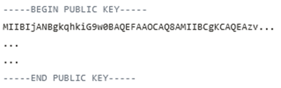
The content of the public file may look as follows:
-
In the next step, the file content (the SQL command) is executed in Snowflake
ATTENTION! Only copy the content between the header and footer lines (all in one line, i.e., without -----BEGIN... and -----END...) and execute this SQL command in Snowflake as SECURITYADMIN or ACCOUNTADMIN.
-
The placeholder ‘your_user’ will be replaced by the actual user, and the long string will be replaced by your public key content:
-> ALTER USER your_user SET RSA_PUBLIC_KEY = 'MIIBIjANBgkqhkiG9w0BAQEFAAOCA...';
3. Establish connection in GAPTEQ
-
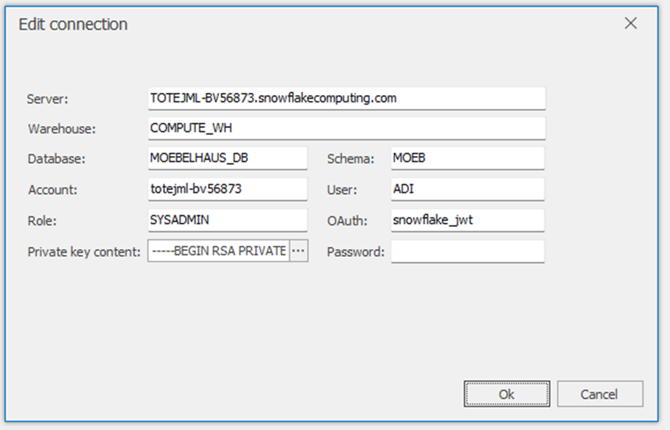
In the Snowflake portal, under “Account name” -> ‘Account’ -> “View account details,” the connection data is visible in the “Config file” or “Connection/Drivers” tab
-
In GAPTEQ-Designer, under the “Connections” tab, you can select the “Snowflake” connection type, where the relevant data will be requested
Tip! Under the “Private key content” tab, you can select the generated “rsa_key.p8” file—you will need the password you assigned earlier.
4. Special considerations when working with Snowflake
Note! When using session variables in the logon script, there is a difference to note compared to other data sources. The variables are populated on a Snowflake basis using a SELECT SQL statement.
-
From other data sources, setting session variables using “SET @variablename =” is familiar. A SELECT SQL statement on Snowflake might look like this, for example:
SELECT 102 as @ServerTestCount (--> Here, the variable is assigned the value 102)
Tip! Please also note that only ONE SQL statement may be set. Multiple SQL commands separated by semicolons are not permitted.