![GAPTEQ Logo links weiss.png]](https://knowledgebase.gapteq.com/hs-fs/hubfs/GAPTEQ%20Logo%20links%20weiss.png?width=223&height=54&name=GAPTEQ%20Logo%20links%20weiss.png)
In this article, you will read about the following topics:
Adding an MS Azure SQL database
Connecting an MS Azure SQL database in GAPTEQ Designer
Connecting an MS Azure SQL database in SQL Server Management Studio
1. Adding an MS Azure SQL database during the ordering process
-
You can order our cloud versions in the GAPTEQ portal under the “Licensing” tab.
-
Follow the instructions of the licensing wizard and select the desired database option in the third step. You can choose between:
-
I do NOT need a database
-
Azure SQL database 10 DTU / 20 DTU / 50 DTU (price information)
-
-
Then assign a password for the initial DB user (“DBAdmin”) and repeat this.
Note! You will initially work with the initial DB user “DBAdmin” (cannot be changed). In SQL Server Management Studio, you can create additional DB users, delete them, assign rights, etc.
-
Follow the remaining steps of the licensing wizard and complete the order by clicking “Purchase.”
2. Connect MS Azure SQL database in GAPTEQ Designer
-
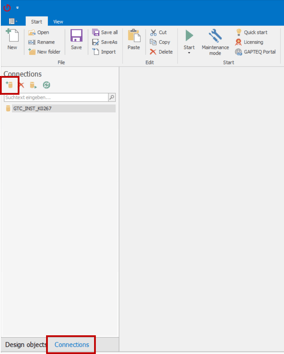
Now open GAPTEQ-Designer and add a new database connection in the “Connections” area.
-
The Database Connection wizard will then open. In the first step, select the “MS SQL CloudDatabase” option under “Available Connections” and continue with “Next.”
-
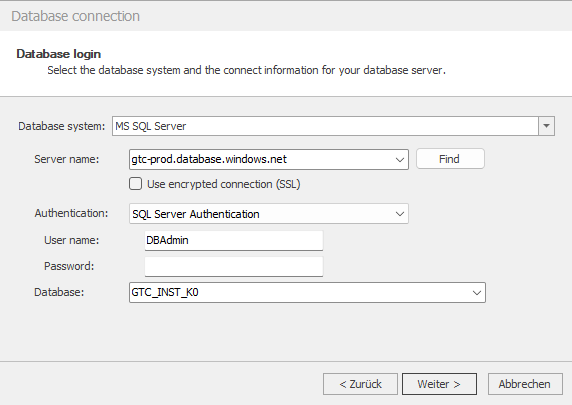
In the following “Database login” window, select the following settings:
-
Database system: MS SQL Server
- Server name (or data source): *enter your server name here*
- Authentication: SQL Server Authentication
- User: DBAdmin (initial DB user)
- Password: *enter your assigned password here*
- Database: *Enter the name of your database here*
-
Tip! You can find your personal MS Azure SQL database details (server name or data source & database) at any time in the GAPTEQ portal under your subscriptions in the “Database” tab.
3. Connect the MS Azure SQL database in SQL Server Management Studio
-
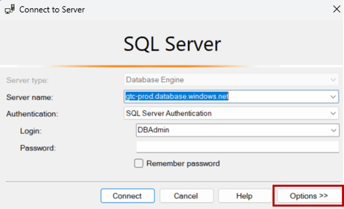
Now open SQL Server Management Studio and enter the access data for your database (server name, user, password) in the login window.
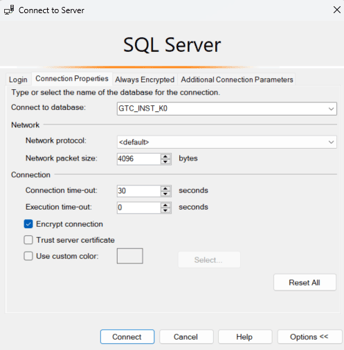
Please note! Then go to the “Options” tab and enter your database once under “Connect to database.”
-
Finally, click “Connect” to connect to your database and you can now start editing or creating tables.
Tip! In SQL Server Management Studio, you can use the appropriate SQL commands to create new DB users, delete them, assign rights, edit them, etc., or transfer users from your old DB.