![GAPTEQ Logo links weiss.png]](https://knowledgebase.gapteq.com/hs-fs/hubfs/GAPTEQ%20Logo%20links%20weiss.png?width=223&height=54&name=GAPTEQ%20Logo%20links%20weiss.png)
In this article you will read the following content:
Configurations in the Microsoft Azure Portal
Create connection in the GAPTEQ-Designer
Special considerations when working with Databricks
1. Configurations in the Microsoft Azure Portal
If no Azure Databricks resource is already in use in the company:- Open the Microsoft Azure Portal and create a new resource for Databricks via “Create a resource”. Follow the wizard.
- The instance can be started via “Launch Workspace”.

- Use “SQL Warehouses” and “Create SQL warehouse” to create a new area in which the tables will be stored in future.
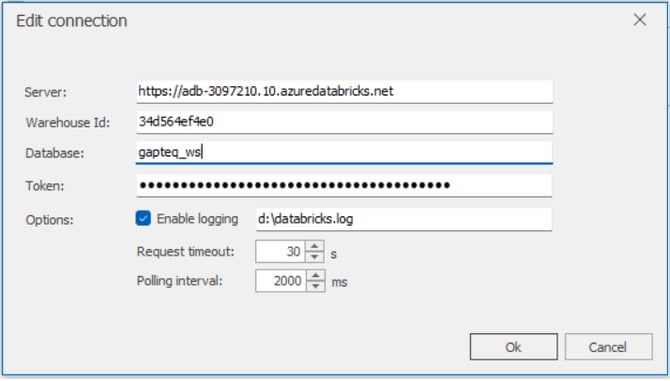
- Under “Connection details” the “Server hostname” and the Warehouse Id (here “HTTP path”) are assigned, which are required later for establishing the connection with GAPTEQ.
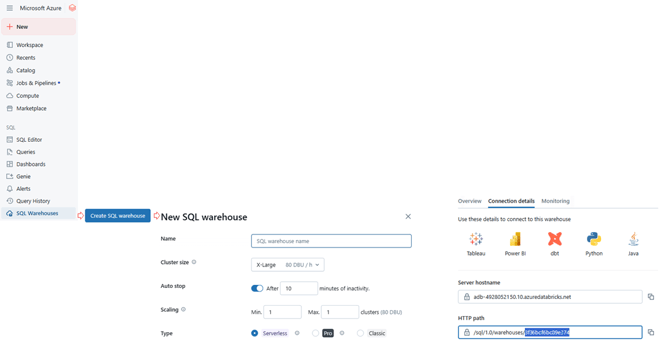
A token is also required for access and connection in GAPTEQ, which is created as follows:
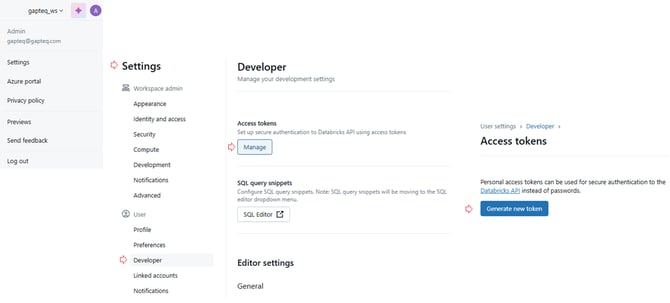
- A new access token can be created via the current user (top right of the window) and the “Settings” tab under ‘Developer’ (“Create new token”).
The “Access token” is later used as a password in the GAPTEQ Designer. This is only displayed once after creation and must therefore be saved temporarily!
2. Create connection in the GAPTEQ-Designer
The connection to Azure Databricks works in the GAPTEQ Designer in a similar way to the connection to a normal database.
- The wizard can be started via the “Connections” tab and the green plus symbol via “New database connection”.
- After selecting the “Databricks API”, the corresponding access data is requested.
Note! GAPTEQ supports all common data types such as Interger, Decimal, Float, Varchar, Boolean, DateTime.
3. Special considerations when working with Databricks
Note! When using session variables in the logon script, there is a difference to note compared to other data sources. The variables using a SELECT SQL statement.
From other data sources, setting session variables using “SET @variablename =” is familiar. A SELECT SQL statement on Databricks might look like this:
SELECT 102 as @ServerTestCount (--> Here, the variable is assigned the value 102)
Tip! Please also note that only ONE SQL statement may be set. Multiple SQL commands separated by semicolons are not permitted.